A Linux desktop in your browser
Xfce, Chrome, and coding agents on a VM you open in a browser tab.
Shelley handles the setup. About 5 minutes.
Prefer a terminal?
curl -fsSL https://exe-staging.dev/deploy/linux-desktop/prompt.txt | ssh exe.dev new --prompt=/dev/stdinSometimes you want a whole computer, not a terminal: a browser that stays signed in, windows you leave open overnight, a GUI app, or an agent's work you want to look at. This recipe turns an exe.dev VM into that computer. It's an Xfce desktop with Google Chrome, running all the time, that you open in a browser tab from any computer. Close the tab and everything keeps running; open it again tomorrow, from somewhere else, and your windows are where you left them.
The coding agents that come with every exe.dev VM are on the desktop too: Claude Code, Codex, OpenCode and Pi, each a double-click away, connected to models through exe.dev's LLM integration with no API key to paste. They can open what they build in the desktop's Chrome, where you see it. The desktop streams through KasmVNC, which resizes it to your window and syncs the clipboard, behind exe.dev's login.
What you get#
- An Xfce desktop with Google Chrome at
https://<vm>.exe.xyz:8444/, behind exe.dev login, sized to your browser window - The desktop running all the time, so windows stay open when you close the tab, and back on its own after a reboot
- Launchers on the desktop for Claude Code, Codex, OpenCode and Pi, starting in
~/code - Claude Code and Codex connected to exe.dev's LLM integration, with no API key on the VM
What's running, and where
https://my-linux-desktop.exe.xyz:8444/
the desktop, for you and people you share the VM with
ssh my-linux-desktop.exe.xyz
a terminal on the same machine, and file copies with scp
Deploy with Shelley#
Click Deploy and Shelley will set up Linux desktop on a new VM, then check that it works. No config-file wrangling required.
Prefer a terminal?
curl -fsSL \
  https://exe-staging.dev/deploy/linux-desktop/prompt.txt \
  | ssh exe.dev new --prompt=/dev/stdin
What Shelley is told
Set up Linux desktop on this VM by following the exe.dev recipe at https://exe-staging.dev/deploy/linux-desktop.md from top to bottom.

The recipe's example VM name is my-linux-desktop. This VM's name is the output of `hostname`: use it wherever the recipe writes my-linux-desktop. Skip the step that creates the VM; you are on it.

You are done when all of these are true. Check each one yourself:
- An Xfce desktop with Google Chrome at `https://<vm>.exe.xyz:8444/`, behind exe.dev login, sized to your browser window
- The desktop running all the time, so windows stay open when you close the tab, and back on its own after a reboot
- Launchers on the desktop for Claude Code, Codex, OpenCode and Pi, starting in `~/code`
- Claude Code and Codex connected to exe.dev's LLM integration, with no API key on the VM

Run "Set up by hand" from "On the VM" (skip creating the VM), then
check it with the commands at the end of that section. Don't open
Chrome or the coding agents on the desktop: their first-run screens
(Chrome's terms, Claude Code's theme and folder trust) are the owner's
to answer. If Claude Code or Codex settings already exist, leave them
alone. Never make the VM public or point port 8000 at the desktop: it
has no password of its own. Finish with the desktop's URL, using this
VM's name, and what to try first from "Open your desktop".

Finish with the URLs I should open.
Also at /deploy/linux-desktop/prompt.txt. The recipe it follows is /deploy/linux-desktop.md.
Open your desktop#
Open https://my-linux-desktop.exe.xyz:8444/ and sign in to exe.dev if
asked. The desktop fills the tab, with Chrome, a home folder, and a
launcher per coding agent down the left. A panel opens on the left edge
the first time; the small tab on the edge opens and closes it again.
Double-click Google Chrome. The first time, Chrome asks you to accept
Google's terms and whether to sign in; signing in to Chrome syncs your
bookmarks and passwords to this VM, which you may or may not want. What
you do in it stays on the VM: the profile, its cookies and signed-in
sites live in ~/.config/google-chrome, and downloads go to
~/Downloads.
The side panel has what a browser tab can't do on its own:
- Clipboard: in Chrome or Edge on your computer, copy and paste between your computer and the desktop work as usual (allow clipboard access when your browser asks). In other browsers, paste into the box here to send text to the desktop.
- Fullscreen: the desktop takes the whole screen.
- Keys: Ctrl, Alt, Esc and the Windows key as buttons, and an on-screen keyboard on phones and tablets.
- Settings: on a Mac, turn on Translate keyboard shortcuts so Cmd+C and Cmd+V become Ctrl+C and Ctrl+V on the desktop.
The desktop follows the size of your tab. Resize the window and it resizes too.
Warning
The desktop has no password of its own; exe.dev login is the lock. Never point the VM's main port at it (
share port) or make the VM public, or anyone could use it, terminal andsudoincluded.
Code with an agent#
Double-click Claude Code. A terminal opens in ~/code and starts
Claude Code, already connected to Claude through the LLM integration. The
first time, it asks for a color theme and whether you trust the folder.
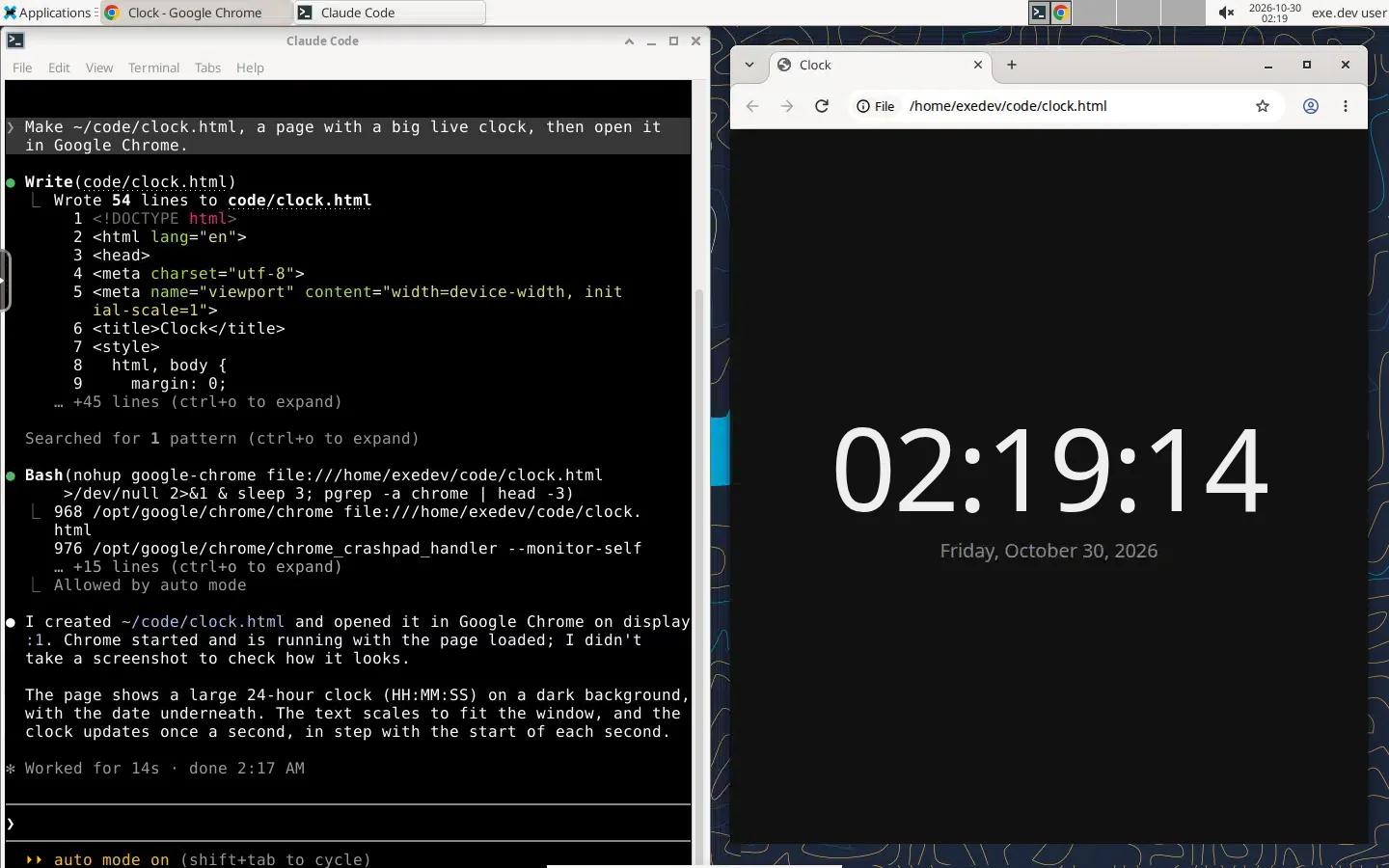
Then give it something it can show you:
Make ~/code/clock.html, a page with a big live clock, then open it in Google Chrome.
Claude writes the page and runs google-chrome, and a Chrome window
opens on the desktop with the clock. Agents in a terminal here can open
anything they make, a web app on localhost:3000, an image, a PDF, and
you look at it the way you would on your own computer.
The other launchers work the same way:
| Launcher | Runs | Connected through |
|---|---|---|
| Claude Code | claude |
the LLM integration (exeuntu configure claude) |
| Codex | codex |
the LLM integration (exeuntu configure codex) |
| OpenCode | opencode |
OpenCode's own free models; the OpenCode recipe connects it to the LLM integration |
| Pi | pi |
the LLM integration, through its exe.dev extension |
When an agent exits, its terminal stays open at a shell. They are the same
programs you reach over SSH (ssh my-linux-desktop.exe.xyz), with the same
settings and files, so you can start work in one and look in on it from the
other. To use your own Claude or ChatGPT subscription instead of the LLM
integration, see the Claude Code and
Codex recipes.
Share it#
To work on the desktop with someone else, share the VM with them, on your computer:
ssh exe.dev share add my-linux-desktop teammate@example.com
They sign in to exe.dev and open the same address. You both see the same
screen, and you can both move the mouse and type. Remove them with
ssh exe.dev share remove my-linux-desktop teammate@example.com.
Move files#
The desktop is the VM, so its files are the VM's files: ~/Desktop,
~/Downloads, and ~/code are in /home/exedev. Copy them with scp,
on your computer:
scp my-linux-desktop.exe.xyz:Downloads/report.pdf .        # from the desktop
scp notes.txt my-linux-desktop.exe.xyz:Desktop/             # to the desktop
A file copied to ~/Desktop shows up on the desktop straight away. For
text, copy and paste is quicker.
The nuts and bolts#
Deploy sets all this up. The commands are here to do it by hand, and for later.
Set up by hand
On your computer, create a VM and connect. Pick any free name; if you've already clicked Deploy or have a VM, skip the first command and use its name:
ssh exe.dev new --name=my-linux-desktop
ssh my-linux-desktop.exe.xyz
On the VM, read setup.sh, then run it:
curl -fsSL https://exe-staging.dev/deploy/linux-desktop/setup.sh | bash
It takes about two minutes. It installs Xfce from Ubuntu, KasmVNC 1.5.2 from its GitHub release, and Google Chrome from Google (which adds Google's apt repository, so Chrome updates with the rest of the system). Then it:
- writes KasmVNC's settings to
~/.vnc/kasmvnc.yaml: plain HTTP on port 8444, since exe.dev's proxy adds HTTPS, and a desktop that resizes to your window; - writes
~/.vnc/xstartup, which starts Xfce; - adds
exedevto thessl-certgroup and makes a KasmVNC user with a random password: KasmVNC insists on both, even though the desktop serves plain HTTP and the service turns KasmVNC's own login off; - makes Chrome the default browser and puts launchers for the coding agents on the desktop and in the menu (Applications → Development);
- runs
exeuntu configure claudeandexeuntu configure codex, which connect Claude Code and Codex to the LLM integration; - writes the
desktopsystemd service, which runsvncserver :1 -fg -autokill -DisableBasicAuthasexedev, starts at boot, and starts a fresh desktop two seconds after the old one ends, if you log out of Xfce, say.
It ends with active, HTTP/1.1 200 OK, and the desktop's address. To
check it again later:
systemctl is-active desktop
curl -s -o /dev/null -w '%{http_code}\n' localhost:8444/
active and 200 mean it's up. Running the script again is safe; it
restarts the desktop, which closes its windows.
Back up and restore
Everything worth keeping is in /home/exedev: your files, Chrome's
profile with its signed-in sessions, and the agents' settings. The
simplest backup is a copy of the whole VM, on your computer:
ssh exe.dev cp my-linux-desktop my-linux-desktop-backup
The copy is a working desktop of its own, at
https://my-linux-desktop-backup.exe.xyz:8444/. To keep a backup off
exe.dev, archive your files and Chrome's profile on the VM, with Chrome
closed:
tar -C ~ -czf ~/desktop-backup.tgz Desktop Documents Downloads code .config/google-chrome
and copy it to your computer with
scp my-linux-desktop.exe.xyz:desktop-backup.tgz .. Leave out folders
you don't have. The archive holds your browser's cookies, so keep it
somewhere private. To restore, set up a new desktop, copy the archive
back, close Chrome there, and unpack it with
tar -C ~ -xzf ~/desktop-backup.tgz.
Update
On the VM, Xfce and Chrome update with the system:
sudo apt-get update && sudo apt-get upgrade -y
Restart Chrome after an update (close it and open it again). For a newer KasmVNC, run the setup again with its version, from KasmVNC's releases:
curl -fsSL https://exe-staging.dev/deploy/linux-desktop/setup.sh | KASMVNC_VERSION=1.5.2 bash
The agents update with exeuntu update claude (or codex, opencode,
pi).
Something not working?
- The tab says it can't connect, or exe.dev shows an error for port
8444. The desktop isn't running:
systemctl status desktopon the VM, andjournalctl -u desktop -n 50for why. KasmVNC's own log is in~/.vnc/*.log. - A grey or black screen with no panel. Xfce stopped; restart the
whole desktop with
sudo systemctl restart desktop. - Everything is frozen. Reload the tab. If it stays frozen, restart the desktop as above; it closes open windows, but files are safe.
- Copy and paste doesn't reach the desktop. Your browser blocked clipboard access: allow it in the site's settings (the icon left of the address), or use the side panel's Clipboard box.
- A shortcut goes to your computer instead of the desktop. Your browser or operating system keeps some keys for itself (Alt+Tab, Cmd+Q, Ctrl+W). Use the side panel's Keys for those.
Frequently asked questions#
Who can use my desktop?
You, and people you share the VM with. Port 8444 goes through exe.dev's HTTPS proxy, which asks for an exe.dev login, and ports other than the main one can never be made public. The desktop has no password of its own, so anyone you share the VM with can use it, and they get the VM's terminal and sudo with it.
Does it keep running when I close the tab?
Yes. The desktop lives on the VM, not in your tab: close the tab, shut your laptop, open it from another computer, and the same windows are there. A long build or an agent working in a terminal on the desktop carries on while you're away.
Which browsers work?
Chrome, Edge, and other Chromium browsers work best: copy and paste between your computer and the desktop just works. Firefox works too, with copy and paste through the clipboard box in the side panel. KasmVNC doesn't officially support Safari. Phones and tablets work, with an on-screen keyboard from the side panel's Keys.
Is there sound?
No. KasmVNC streams the picture and takes your mouse and keyboard; videos in the desktop's Chrome play silently.
Can an AI agent use the desktop instead of me?
Yes, that's the computer use recipe: the same kind of desktop, with Chrome's DevTools port and Playwright MCP for coding agents and Claude's computer use tool for clicking through any app, while you watch. Here, the agents work in terminals and you drive the desktop.
How do I set my time zone?
The VM runs on UTC. On the VM, run sudo timedatectl set-timezone Europe/Berlin (any name from timedatectl list-timezones), then sudo systemctl restart desktop, which closes the desktop's windows.
How much memory does it need?
About 850 MB with Chrome open on a new tab and Claude Code running, and almost no CPU while the screen is still. Each Chrome tab adds what it would on your own computer. If you open many, give the VM more memory with a bigger plan.
Updated Oct 30, 2026 · tested end to end Oct 30, 2026 · Markdown · manifest.json · Something wrong? Tell us